

How to install an SSL certificate in FastPanel
Let's walk through issuing and installing a Let's Encrypt certificate, as well as adding an existing SSL certificate.
Installing a Let's Encrypt certificate
To install a free Let's Encrypt certificate, do the following:
- Open the card of the website you want to install the certificate on.
- Go to the "SSL certificates" section.
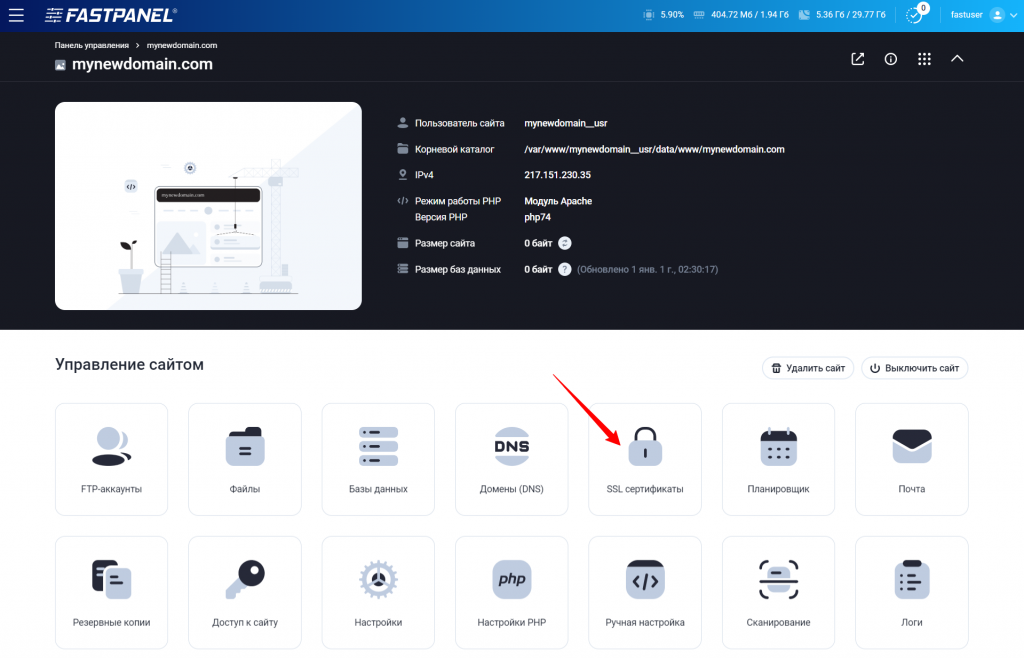
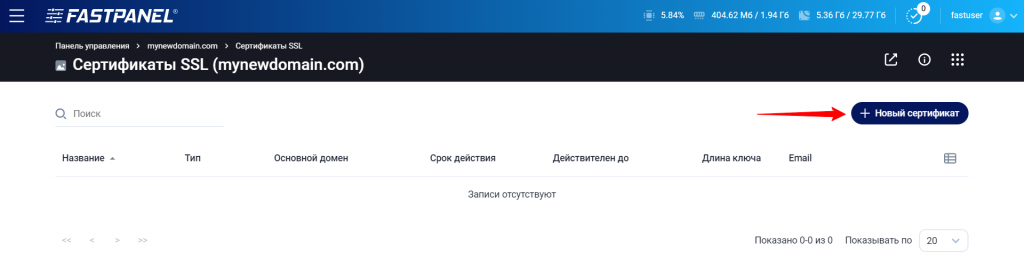
- Click the "New certificate" button.
- You will land in the Let's Encrypt section on the "Regular certificate" tab. The "Email" and "Key length" fields will be filled in automatically — you can change them if needed.
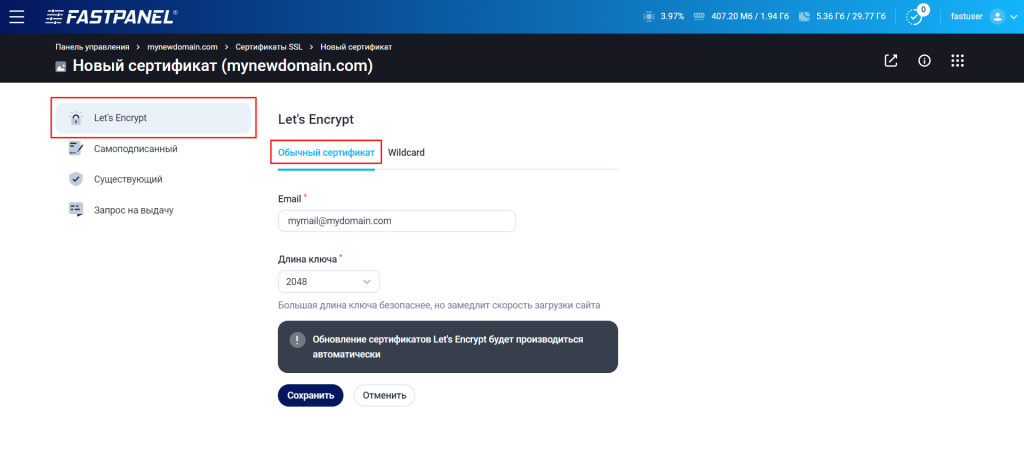
- Click the "Save" button.
The certificate will be issued and installed automatically. Automatic renewal will also be enabled.
After the installation, enable the redirect from HTTP to HTTPS as follows:
- Open the website card and select "Options".
- Go to the "HTTPS" section.
- Check the "Redirect to HTTPS" option and save the settings.
Installing a Let's Encrypt Wildcard certificate
A Wildcard certificate protects both the main domain and all of its subdomains.
To install such a certificate, follow these steps:
- Go to the card of the required website.
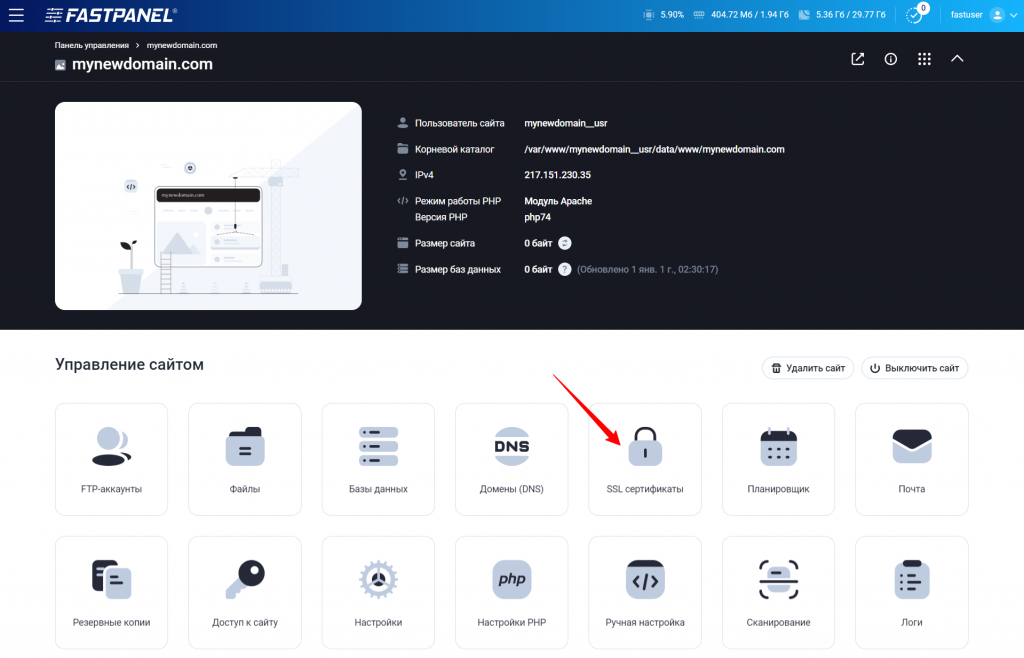
- Open the "SSL certificates" tab.
- Click the "Create new certificate" button.

- You will get to the Let's Encrypt section. Open the "Wildcard" tab. The "Email" and "Key length" fields are filled in automatically, but you can change them if necessary.

- Click "Save".
- The certificate will appear in the list. Click "Restore".
- A window with data will open. Copy the suggested TXT record values:

- Log in to your client area and go to the "Domains" section.
- Click the gear icon next to the required domain and select "DNS records".
- Click "Add record" in the top right corner and select the "TXT" type.
- In the "Host" field enter "_acme-challenge", and in the "Value" field paste the data copied from FastPanel. Save the record.
- Add one more TXT record in the same way.
- Return to FastPanel and click "Continue".
The Wildcard certificate will be installed. Automatic Let's Encrypt renewal will also be enabled.
After the installation, enable the redirect from HTTP to HTTPS:
- Open the website card and select "Options".
- Go to the "HTTPS" section.
- Enable the "Redirect to HTTPS" option and save the changes.
Adding an existing certificate
To upload and install an existing certificate, do the following:
- Open the card of the website you want to bind the certificate to.
- Go to the "SSL certificates" section.

- Click "New certificate".

- On the left, select the "Existing" option and fill in the fields:
— Paste the private key into the Private key field.
— Enter the certificate text into the Certificate field.
— Provide the certificate chain (usually a .ca-bundle file from the certificate authority) in the Chain field. - Click "Save".
After the installation, enable the redirect to HTTPS:
- Open the website card and go to the "Options" section.
- Select the "HTTPS" tab.
- Check the "Redirect to HTTPS" option and save the changes.

